Manage your customer support by chatting with the AI you already trust.
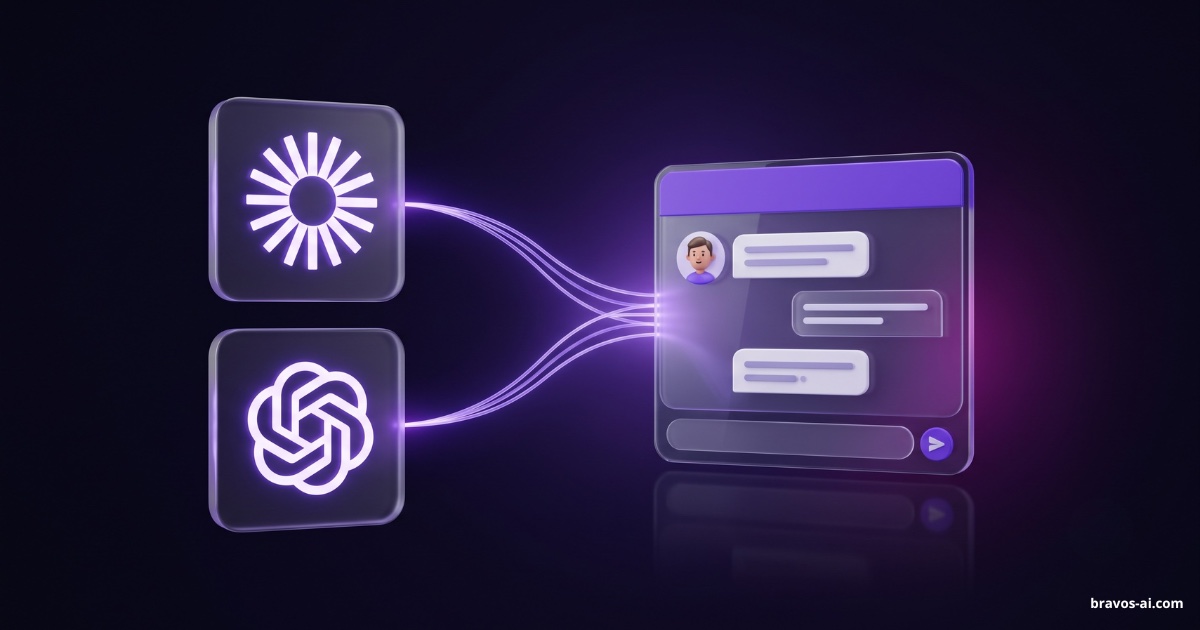
Connect your Claude, ChatGPT or any compatible AI assistant to Bravos and ask it to review how your bot answers customers, improve what it knows and align its tone with your business goals. It writes and configures for real — it doesn’t just read.
No panel needed. No code. No headaches.

With your own AI subscription · no extra cost on Bravos
It doesn’t run on generic rules. It applies our team’s expertise to your own setup.
The connector brings the judgment of the people who built Bravos to your Claude, ChatGPT or whatever tool you use: which configuration works and how a good bot should reply.
Three steps. The first only once.
 Bravos AI
Claude wants to access your Bravos account
Authorizewithout sharing your passwordConnect it
One click from your assistant and you authorize with your account, like signing in with Google. No copying keys, nothing to install.
Talk to it
Ask it like you’d ask a teammate. Your AI decides what to check and what to change inside your account.
Done
Changes apply to your bot instantly. And you revoke access in one click whenever you want.
No panel, no menus, no code. Just ask, in your own words.
Five things your AI does for you inside Bravos, with the request exactly as you’d type it.

Half of them write. That’s the difference.
Almost every AI connector only reads your account: it stops at the first half. The Bravos one also writes and configures for real — the whole second half.
Your AI acts. You’re in charge.
Never sees your credentials
No passwords, no keys. Your AI only gets a signed authorization from you, never your login details.
Revocable in one click
Revoke access from your panel anytime, and the connection dies instantly.
OAuth 2.1 standard
Authorization relies on the same standard behind “sign in with Google”.
With your own AI subscription
What you’d ask before connecting it.
What is an MCP connector?
MCP (Model Context Protocol) is the open standard that lets an AI assistant like Claude or ChatGPT use other apps. An MCP connector is the bridge that links your AI to one of those apps so it can act inside it. The Bravos connector links your AI to your chatbot: once you connect your account, it can manage the bot by chatting (audit conversations, improve its content, adjust its settings) just like you would from the panel.
How do I connect my chatbot to ChatGPT or Claude?
In your Bravos panel, under Integrations, copy the connector’s address. Then paste it into your assistant as a custom connector —in Claude, under Customize → Connectors; in ChatGPT, in its connectors— and authorize with your account on the Bravos screen. Nothing to install, no keys to paste: in a couple of minutes your AI is working on your chatbot.
Do I need to know how to code to use it?
No. If you can sign in to a website, you can connect it: copy an address from your panel, paste it into your assistant and authorize with your account. No terminal, no config files, no pasting keys — then you just ask for things in your own words.
What can my AI do with the connector?
What you’d do in the panel, but by talking: audit your customers’ conversations and see what slips past the bot, write and upload content to its knowledge base, and configure its behavior (tone, instructions, lead capture, Human Takeover, chat appearance). It doesn’t just read: it writes and configures for real.
Is it safe to give it access to my account?
Yes. Your AI never sees your credentials: it only gets a signed authorization from you, scoped to your organization. It shows you what it’s going to do before doing it, and you can revoke access in one click from your panel whenever you want. Authorization uses the OAuth 2.1 standard.
How much does the connector cost?
On Bravos, nothing extra: it’s included in your account, during the 7-day trial too. It runs on your own Claude, ChatGPT or whichever client you already pay for, and we don’t charge per request or for the connection.
Which AI assistants does it work with?
With any MCP-compatible client. The most common are Claude and ChatGPT, but since it’s an open standard, it also works from Cursor, GitHub Copilot, Mistral and any other tool that adopts it, now or in the future.
Does it also manage my WhatsApp bot?
Yes. The content and settings your AI adjusts apply to your bot on the web and on WhatsApp: it’s the same bot answering on both channels. Connecting WhatsApp itself is done from the Bravos panel.
Your AI already knows how. Give it the keys.
Connect it in two minutes and manage your chatbot by chatting. No bot yet? Create one for free first — it barely takes any longer.