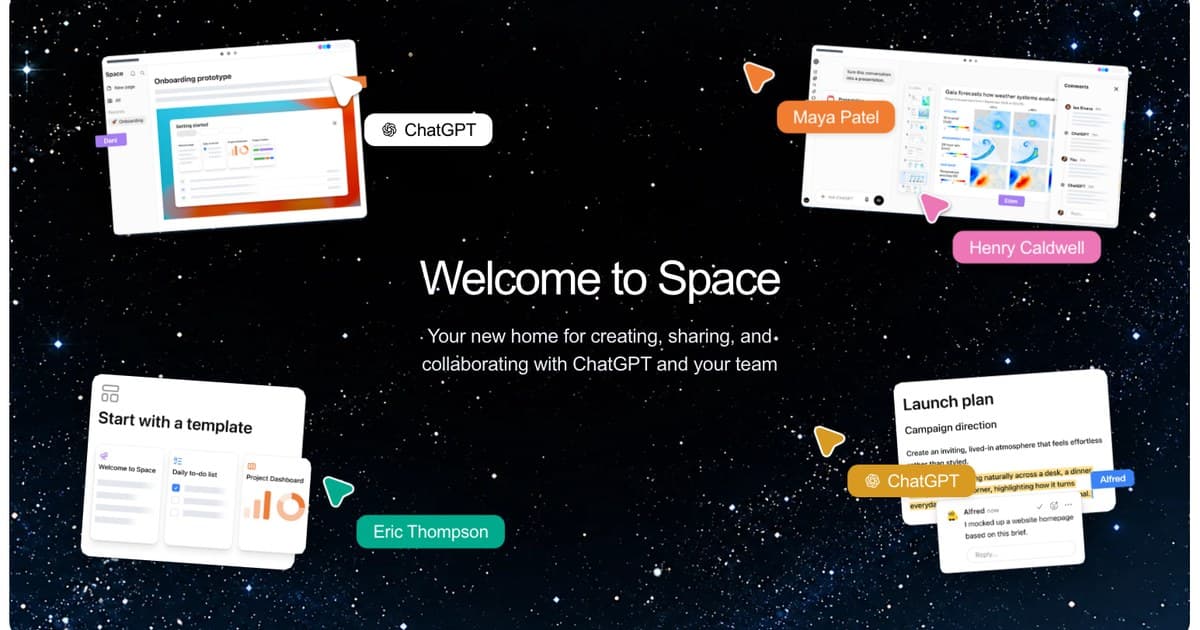
ChatGPT Space is the part of ChatGPT where you create and keep pages, slide decks, spreadsheets, images and files, and where you share them with other people to work on them together. OpenAI introduced it on September 29, 2026 and has been rolling it out to the Plus plan since November 20. On accounts that have it, Space replaces Library.
It is included in the Plus, Pro, Business and Enterprise plans at no extra cost, and it is not available on Free or Go.
This guide covers what ChatGPT Space is, who can use it, how pages work, how ChatGPT Slides builds presentations, what the people you share with can see, and what it still cannot do.
What is ChatGPT Space?
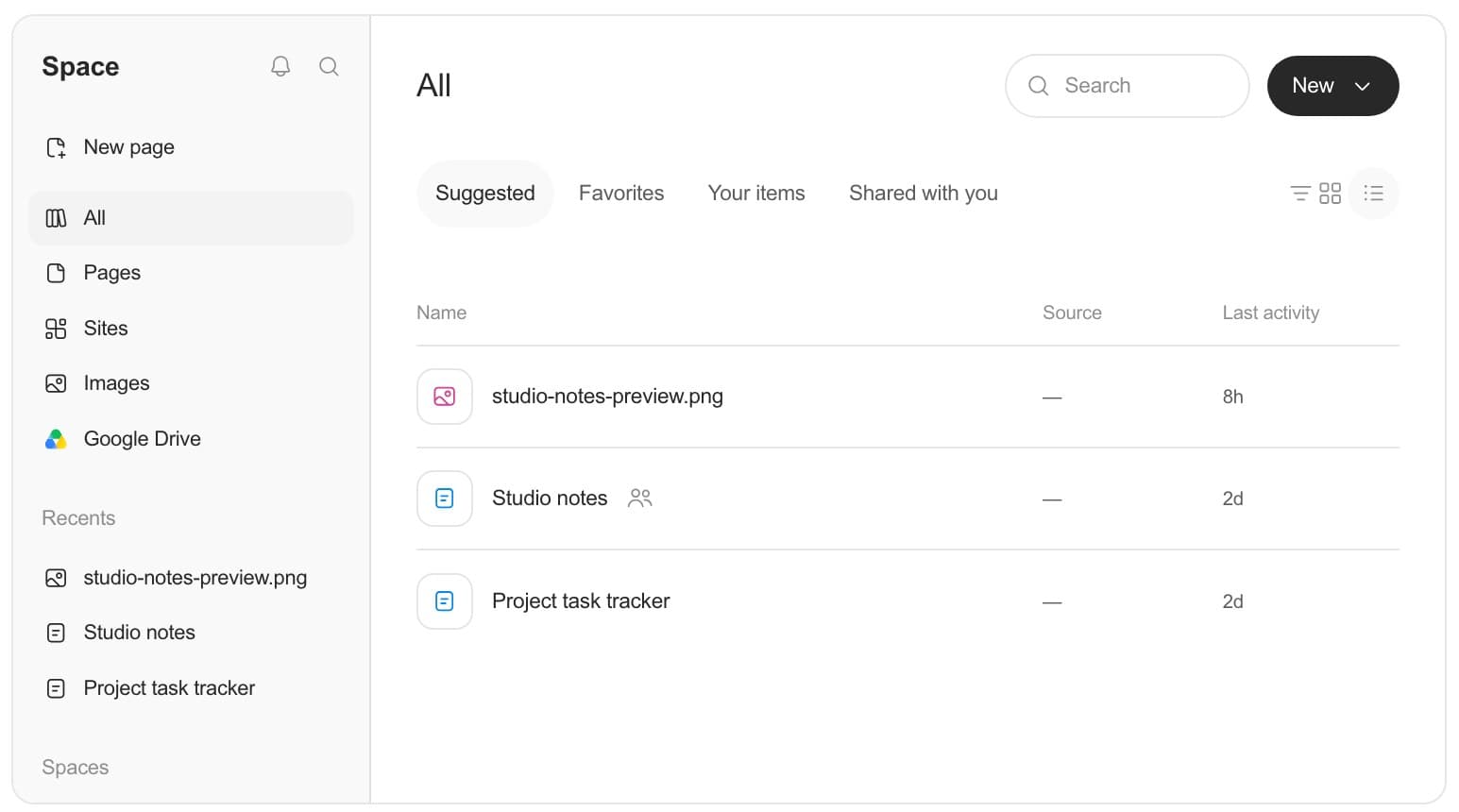
Until now, what you did in ChatGPT stayed inside each conversation, and your files ended up in Library, which was little more than a list. Space changes that. It is a permanent place in the sidebar where your work is saved as documents you can open, edit and share without going back to the chat they came from. OpenAI’s documentation sums it up as the place that brings your pages, slides, files and shared work together.
Three terms are easy to mix up:
- Space, capitalized. The whole area of ChatGPT. It holds everything you have created, everything you have uploaded and everything others have shared with you.
- A space, lowercase. A shared folder inside Space that groups the pages for a topic or a team. Share the space and you share all of its pages.
- A page. A document that you and ChatGPT edit together. It can hold notes, a plan or a handbook, and it can contain pages inside other pages.
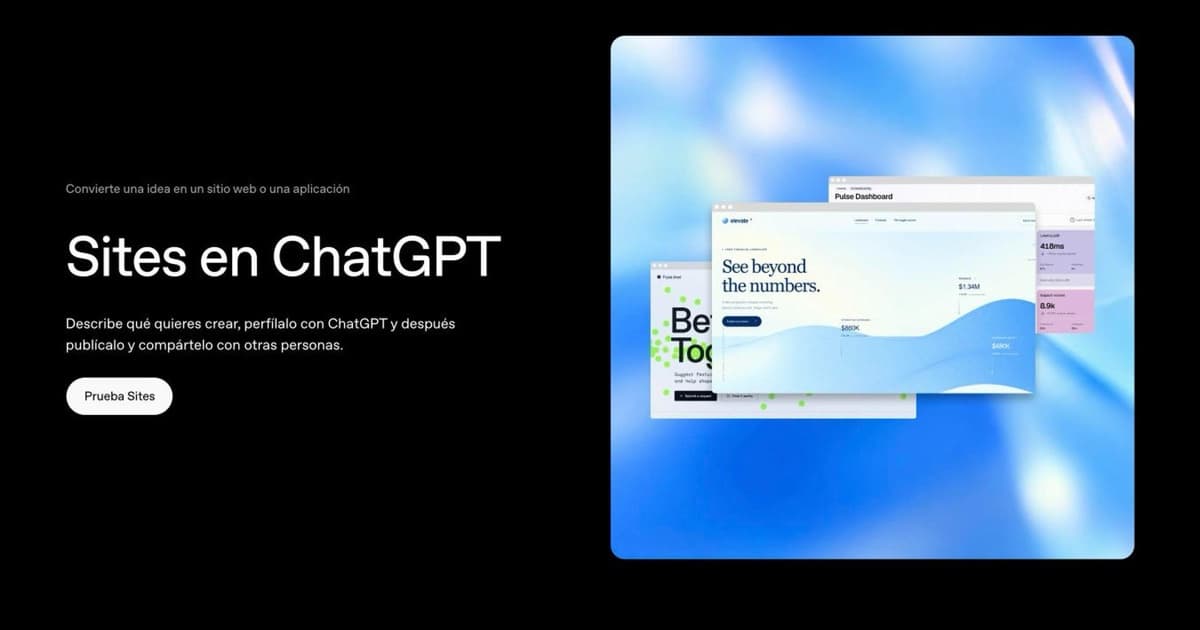
Besides pages, Space brings together ChatGPT Slides decks, spreadsheets, images, uploaded files and the websites built with ChatGPT Sites. ChatGPT Projects do not change: they stay separate.
ChatGPT Space pricing: which plans include it
Space is not sold separately. Either your plan includes it or you do not have it. According to the ChatGPT release notes and the Help Center:
| Plan | Includes Space? | Since |
|---|---|---|
| Free and Go | No. They keep Library | No date announced |
| Plus | Yes, for users aged 18 and older | November 20, 2026, rolling out gradually worldwide |
| Pro | Yes | September 29, 2026 |
| Business and Enterprise | Yes. The admin decides what can be shared | September 29, 2026 |
On Edu and ChatGPT for Healthcare accounts it varies: some already see Space and others still have Library. You can create and edit pages on the web, in the desktop app and in the iOS and Android apps.
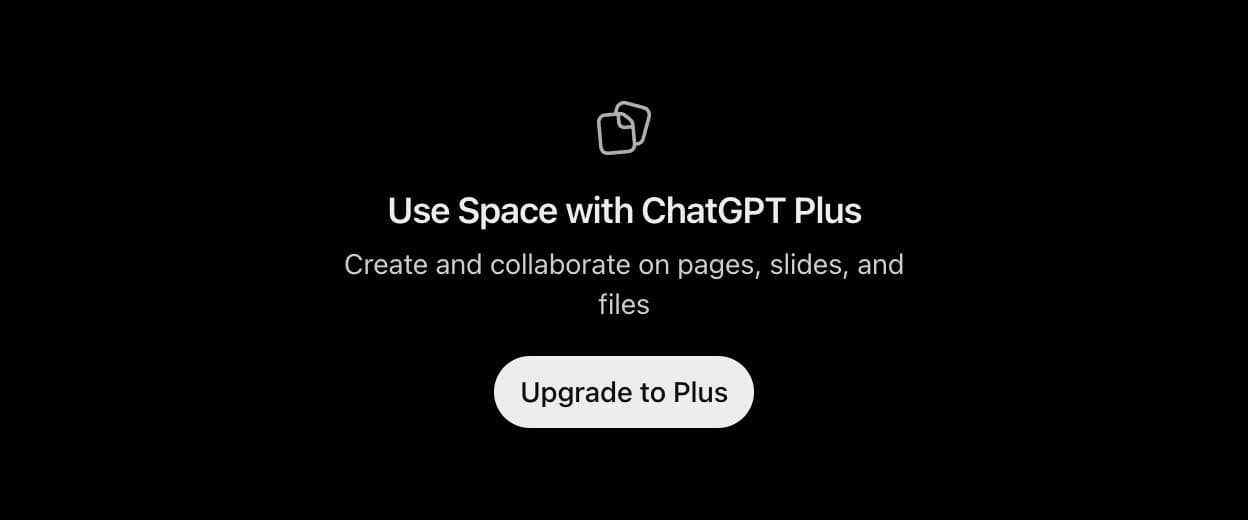
On a plan that does not include it, opening the Space address shows nothing of the product, only a prompt to upgrade to Plus. Library is still in the sidebar.
As for storage, OpenAI publishes Library limits by plan: up to 512 MB on Free, 4 GB on Go, 20 GB on Plus and Business, 25 GB per user on Enterprise and 100 GB on Pro. It gives no separate figure for Space, which is where those same files live on accounts that have it.
How ChatGPT Space pages work
You can create a page in three ways: from the Space sidebar, from a template, or by asking ChatGPT to turn a conversation into a page. From there it works as a block-based document editor, much like Notion: every heading, paragraph, table or image is a block you can drag to a new position.
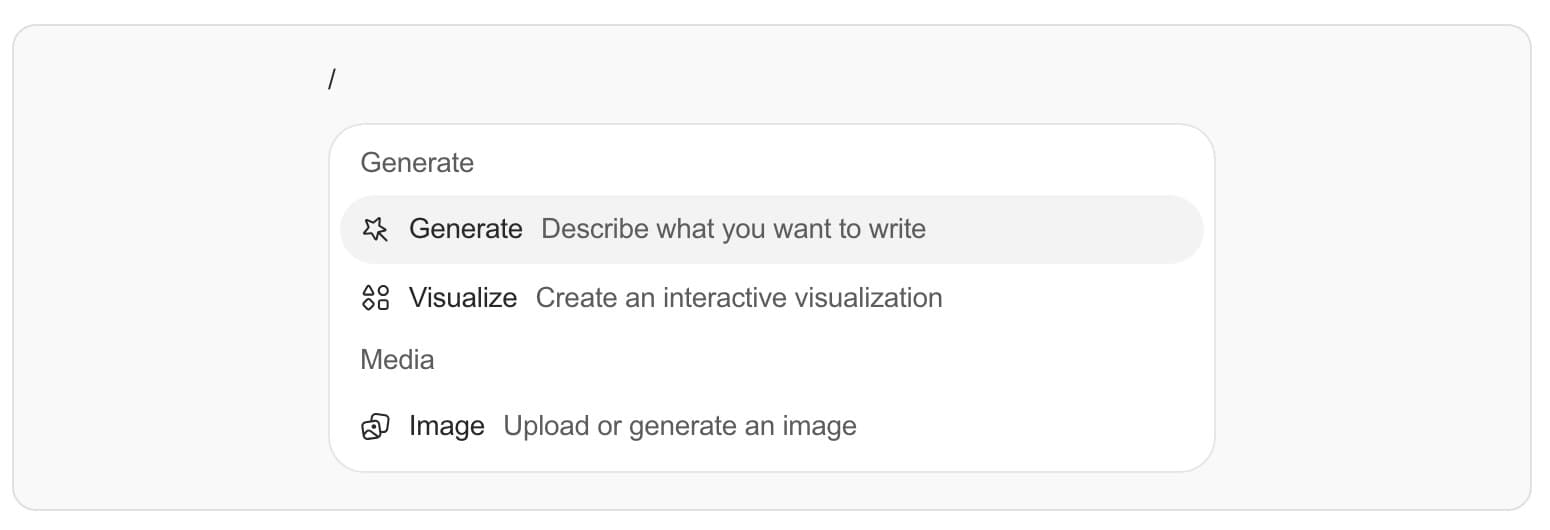
The centerpiece is the insert menu, which opens when you type a slash (/) anywhere on the page. According to the pages documentation, it lets you add:
- Regular content. Headings, lists, checklists, tables, code, highlights, images and files that readers can download.
- Generated text. Generate writes a first draft right in the document from your description. You can accept it, ask for a change or undo it.
- Generated images. An image block lets you upload a picture or ask ChatGPT to create one.
- Interactive visualizations. Visualize builds a calculator, a diagram or a screen design inside the page that readers can use. OpenAI’s example is a project budget calculator where you change the team size and the number of weeks.
- Saved prompts. A Prompt block stores a request that any reader can run with one click, such as “summarize the open decisions on this page and suggest the next three steps”.
- Pages inside pages. They keep a project overview short while the details live in subpages.
The other way to work is to select a passage. Selecting text opens a floating toolbar with two options: Ask for change, to describe how you want that exact passage revised, and Comment, to start a discussion about it. ChatGPT then touches only what you pointed at and shows you the proposal before applying it.
A page can also draw on what you already have elsewhere. With a connected app such as Google Drive, ChatGPT can read files you already have access to and turn them into a summary or a comparison on the page.
How to ask ChatGPT for changes inside a page
In Space you do not have to copy text, take it to the chat and paste the answer back. The documentation describes four ways to ask for help, depending on the size of the change:
| What you want | Where to ask |
|---|---|
| Raise a question or a larger revision | In the conversation that opens alongside the page, saying whether you want the answer in chat or the edit on the page |
| Rewrite a passage | Select the text and use Ask for change |
| Ask for something in the middle of the document | Type @ChatGPT or @dot followed by your request |
| Keep the request visible to the team | In a comment that mentions @ChatGPT or @dot |
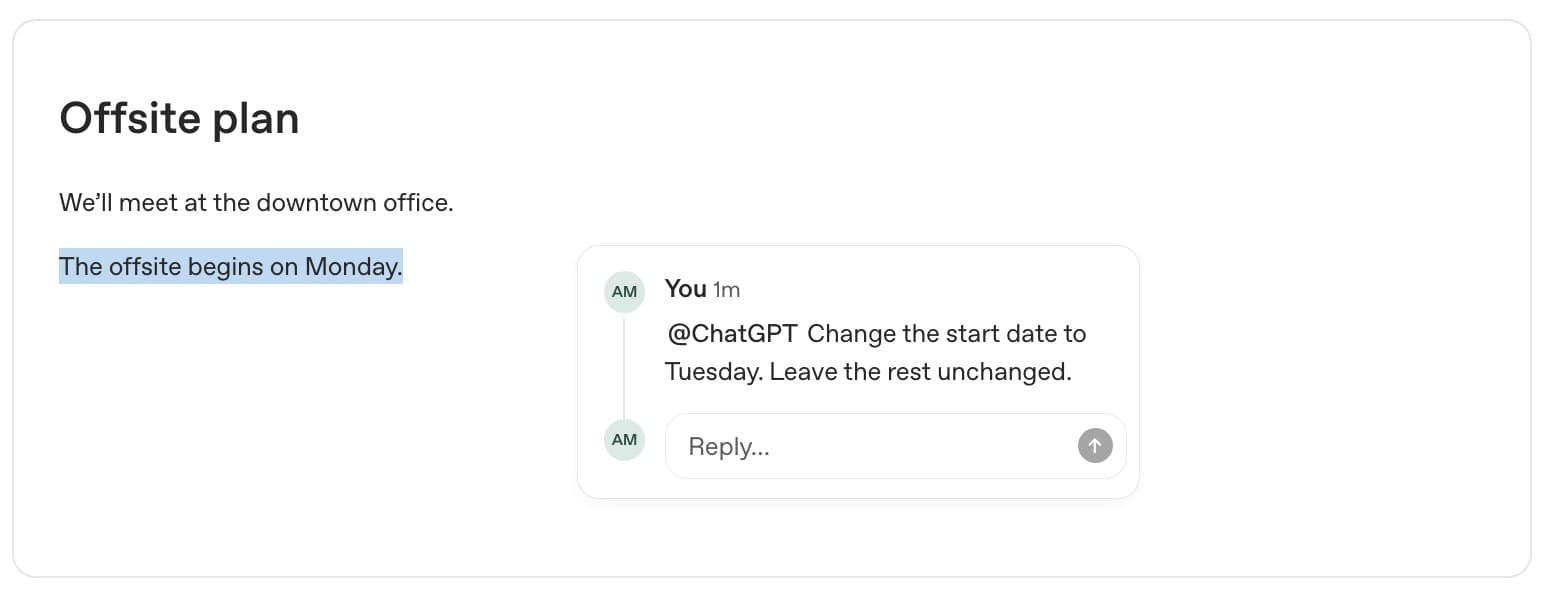
One rule changes how group work plays out: each person uses their own ChatGPT. Two teammates editing the same page each bring their own assistant, with its connected apps and instructions. OpenAI warns that this is why you should agree on who changes what and review the result.
The @dot in the table refers to OpenAI Dots, the personal agents OpenAI introduced on the same day as Space. Not everyone has them: according to the product page, they are available on Pro, Business Premium and Enterprise plans, and only in eligible markets. If you use Space on Plus, you work with ChatGPT, not with a dot.
ChatGPT Slides: how to create presentations in ChatGPT
ChatGPT Slides is the part of Space that builds presentations. It reached Pro, Business and Enterprise on October 16, 2026, and Plus accounts with Space access now have it too. According to the help article, it works like this:
- Create a deck from Space, starting with a blank slide or a template, or ask ChatGPT to build one from a conversation, an outline or source files. If you share an example deck, it uses it as a style guide.
- Edit by hand or with ChatGPT. You can change text, images, shapes, tables and charts directly, or select an element and describe the change. For changes across the whole deck, such as shortening it, there is a prompt bar.
- Share with view or edit access. People with edit access work on the same slides at the same time and can leave comments.
- Present or export. You can present from ChatGPT with speaker notes, or export on the web to PowerPoint (.pptx), PDF or Google Slides. In the desktop app, the deck opens in PowerPoint or Keynote if they are installed.
Four practical details worth knowing first:
- On mobile you can create decks through conversation and view them, but editing slide elements requires the web or the desktop app.
- On Windows, if the device lacks a system component, the desktop app creates a PowerPoint file instead of a collaborative deck. Windows 10 does not support it. OpenAI’s fix is to use cloud mode or the web.
- If you reach your Plus message limit, you can still edit your slides by hand.
- There is no comment-only role for decks: people either view or edit.
Sharing in ChatGPT Space: permissions and privacy
You can share a page with specific people or, in a company account, with a team. There are three access levels: view, comment and edit. The confusing part is inherited access:
- Anyone with access to a space has access to all of its pages.
- Anyone with access to a page has access to its subpages.
- Removing someone’s direct invitation to a page does not remove their access if they still inherit it from the space or the parent page. You have to change it there.
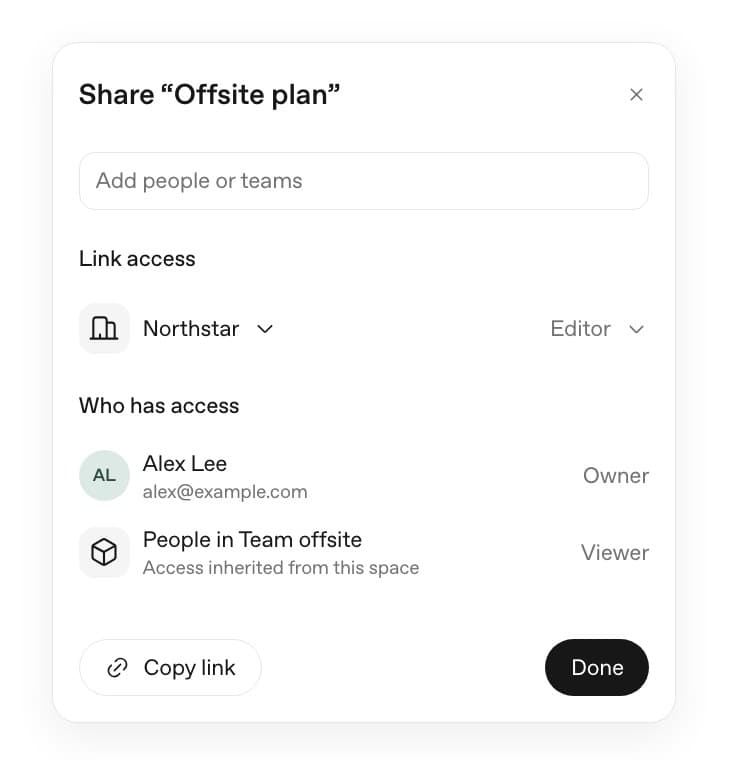
The limit that matters most is who can open what you share. To open a page or a presentation, a person needs permission and must be signed in to a Plus, Pro, Business or Enterprise account with Space access. People on Free cannot open them and public links are not available. If the other person does not pay for ChatGPT, they see nothing.
On privacy, the help article on sharing and data makes four things clear:
- Sharing a page does not share your chats or your memory. But if ChatGPT uses something from an earlier conversation while helping you write, it ends up written on the page and anyone with access can read it. Review the content before you share.
- Files uploaded to a page follow the page’s permissions. Anyone who can open the page can open them.
- A link to an external file does not grant permission to open it. The permissions in Google Drive, or wherever the file lives, still apply. Whatever was copied or summarized from that file onto the page, however, is visible to everyone.
- Model training depends on each person. On personal accounts, if another user’s assistant reads your page, their training settings apply, not yours. On Business and Enterprise, OpenAI does not train on your data by default.
Deleting a page or a space moves it to Trash along with the pages it contains. Files saved separately in Space are not deleted when you delete a chat or a project.
Self-updating pages: what is actually available
This is the most promoted feature and the least clear one, because OpenAI does not say the same thing everywhere:
- The product page advertises pages that keep themselves up to date from your connected tools.
- The November 20 release notes say you can set pages and slides to update automatically based on your connected apps, with a to-do list that updates itself as the example.
- The documentation on agents in Space says Keep Updated is not available at launch, and adds a warning: writing a cadence on a page does not by itself confirm that anything is scheduled.
What is documented is the manual route. You ask ChatGPT, in chat, for a scheduled task with instructions on what to update, which sources to use and how often. Then you check three things: that the task is saved, that it is enabled, and that an actual run changed the page. The page does not look after itself. A separate task updates it, and that task needs watching.
ChatGPT Space limits: what it cannot do yet
The limits, so you do not find them halfway through a project:
- It is not for showing something to just anyone. With no public links and no access for free accounts, a page is only visible to people with a paid plan and an invitation.
- It is not on Free or Go.
- It does not update itself without a separate scheduled task.
- In a company account, the admin is in charge. They can turn sharing off. If they do, new shares are blocked, but whatever was already shared stays shared.
- Outside content carries risk. OpenAI warns that pages, files and tool results may contain hidden instructions that redirect ChatGPT or make it disclose information, and that its safeguards reduce this risk but do not eliminate it.
On top of that, OpenAI’s documentation does not explain how to export a page to a file and does not mention a version history for recovering earlier text. Export is only documented for slide decks.
ChatGPT Space vs Library, Projects and Sites
In a few months OpenAI has shipped several products with similar names, and they are easy to confuse:
| Product | What it is for | Who sees it |
|---|---|---|
| Space | Working documents and slide decks, edited with ChatGPT | You and the people on a paid plan you invite |
| Library | Storing the files you upload or generate | You. It is what Free and Go have instead of Space |
| Projects | Grouping the chats and files for one subject | You and, if you share it, the project members |
| Sites | Publishing a website or a tool built with ChatGPT | Whoever you choose, including anyone on the internet |
| Business Hub | Managing how your company appears in ChatGPT’s answers | ChatGPT users who ask about your business |
What matters most is which way each one faces. Space faces inward: it is for the team. Sites and ChatGPT Business Hub face outward, toward the public and your customers.
Space does not answer your customers: that is still your website’s job
Our opinion: Space solves a real problem every company has, which is keeping documentation organized, current and written with AI help. Prices, policies, manuals, answers to the usual questions. What it does not do, by design, is put that documentation in front of a customer. Your customer has no invitation and probably no paid ChatGPT plan either.
That takes a different tool on your website, and the two fit together: what your team writes well in Space, exported or published on your website, is exactly the material an AI customer service chatbot answers best with. One clear document about delivery times saves more repeated questions than any chatbot setting.
Your documentation is already written. Let it answer your customers.
Bravos AI answers with your website, your documents and your catalog, in 15 languages, on your site and on WhatsApp. Free for 7 days, no card required.
Try Bravos free for 7 daysFrequently asked questions
What is ChatGPT Space?
ChatGPT Space is the part of ChatGPT where you create and keep pages, slide decks, spreadsheets, images and files, and where you share them with other people. OpenAI introduced it on September 29, 2026, and on accounts that have it Space replaces Library.
Is ChatGPT Space free?
It has no separate price, but it is only included in the paid Plus, Pro, Business and Enterprise plans. It is not on Free or Go: those accounts keep Library.
Which plans include ChatGPT Space?
Plus, Pro, Business and Enterprise. Pro, Business and Enterprise have had it since September 29, 2026, and OpenAI started rolling it out globally to Plus users aged 18 and older on November 20, 2026. The rollout is gradual, so it can take a while to reach a given account.
What is the difference between ChatGPT Space and Library?
Library only stores the files you upload or generate. Space keeps those files and adds editable pages, slide decks, spaces that group work by topic or team, and sharing permissions. On accounts with Space there is no separate Library page on the web, and saved files live inside Space.
Can I share a ChatGPT Space page with someone on the free plan?
No. To open a shared page or presentation, a person needs permission and must be signed in to a Plus, Pro, Business or Enterprise account with Space access. People on Free cannot open them and public links are not available. To show something to anyone, you have to export it or publish it with ChatGPT Sites.
Can ChatGPT Slides export to PowerPoint?
Yes. On the web, a ChatGPT Slides deck exports to PowerPoint (.pptx), PDF or Google Slides. In the desktop app you can also open it in PowerPoint or Keynote if those apps are installed. OpenAI recommends checking the content and formatting of the exported file before using it.
Do ChatGPT Space pages update themselves?
Not on their own. The release notes say pages can update from your connected apps, but the documentation states that Keep Updated is not available and that writing a cadence on a page does not schedule anything. You have to set up a scheduled task from chat and check that it actually runs.
Does sharing a page share my chats or memory?
No. People you share with see what is written on the page, not your private chats or your ChatGPT memory. The risk is in what ChatGPT writes: if it uses details from an earlier conversation to draft the page, those details become visible to everyone who can read it.
Can I use ChatGPT Space to answer my customers?
No. Space is built for internal work: only people with a paid account and an invitation can get in, and there are no public links. It is useful for preparing and maintaining company documentation. Answering customers with that documentation takes a different tool, such as a chatbot on your website.
Sources
- ChatGPT release notes (entries for September 29, October 16 and November 20, 2026): help.openai.com . Dates, plans, devices and requirements for opening shared content.
- OpenAI documentation, “ChatGPT Space”: learn.chatgpt.com . What it is, workspaces and spaces, content types and connected sources.
- Documentation, “Get started with ChatGPT Space”: learn.chatgpt.com . First page, slide decks, creating a space and sharing.
- Documentation, “Work with pages”: learn.chatgpt.com . Insert menu, generated text and images, visualizations, prompt blocks and subpages.
- Documentation, “Work with agents in Space”: learn.chatgpt.com . Ways to ask for help, dots and the note on Keep Updated.
- Documentation, “Collaborate in Space”: learn.chatgpt.com . Access levels, inherited access and collaboration on slides.
- Admin documentation, “Manage ChatGPT Space, pages, and slides”: learn.chatgpt.com . Sharing controls, deletion and risks.
- Help Center, “Creating and collaborating on slides in ChatGPT” (accessed November 27, 2026): help.openai.com . Availability, editing, export and limitations of Slides.
- Help Center, “ChatGPT Space: sharing, data, and controls” (accessed November 27, 2026): help.openai.com . Memory, files, links and model training.
- Help Center, “Using Library to manage files in ChatGPT” (accessed November 27, 2026): help.openai.com . Which plans see Library or Space, and storage by plan.
- Product page, “ChatGPT Space”: chatgpt.com . Plans, FAQs and dot availability.