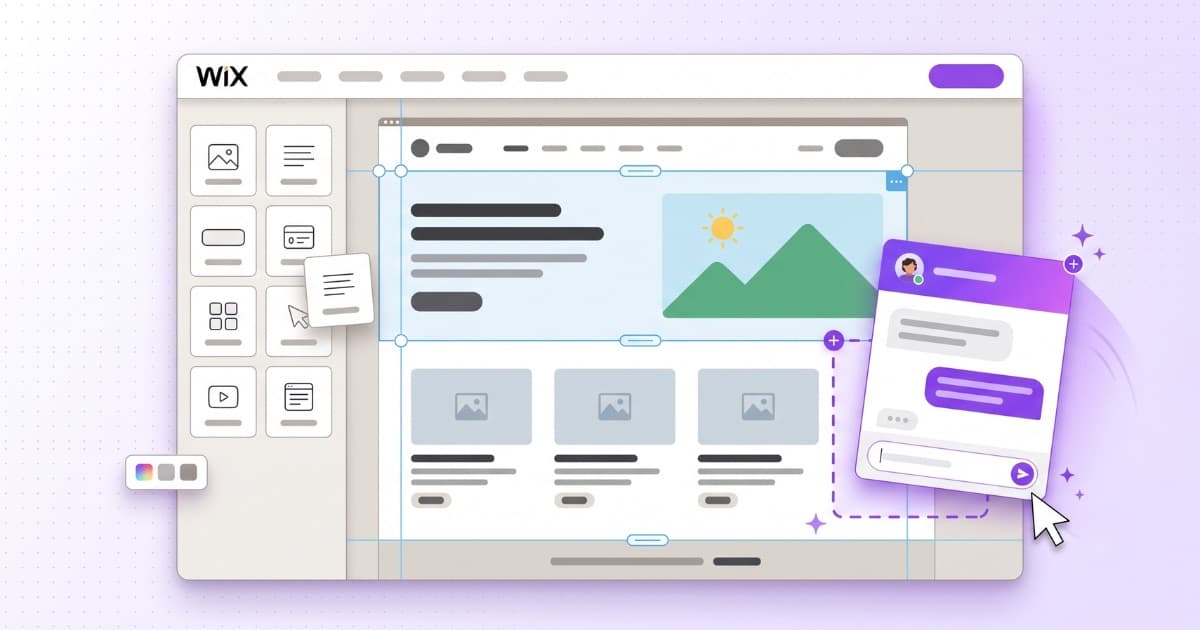
If you're looking for a Wix chatbot with AI, you have two paths: use the one Wix ships built in (it's called Smart Chat) or add a dedicated one from an outside provider. Neither is “the right one” for everybody — it depends on what your business needs.
In this guide we cover exactly what Wix's built-in chat does and how its credit system works (with the official numbers, not hearsay), when it's enough, when it falls short, and how to install an external chatbot on your Wix site step by step. Everything verified against Wix's official documentation in July 2026 — sources at the end.
What Wix gives you built in: Smart Chat
Smart Chat is Wix's current chat solution (in 2026 it replaced Wix's first AI chat, the AI Site Chat). You install it from the Wix App Market and it has two modes you can combine:
- Manual mode: visitors write to you and you (or someone on your team) reply by hand from the Wix Inbox. This mode is free and unlimited.
- AI mode: an assistant answers on its own, based on your site's content and rules you write in the dashboard (your shipping policy or store locations, for example). You can tune its tone, exclude pages and block topics.
On catalogs, what Wix documents is that the AI can suggest items and link to pages on your site based on your catalog and site structure. The widget's interface is available in 34 languages.
For the full picture: on its own App Market listing, Smart Chat holds a rating of 2.9 out of 5 across 133 reviews (July 2026).
How its credit system works (read this before deciding)
Here's the part almost nobody explains. Smart Chat's AI mode is not unlimited: every AI answer consumes “AI credits” from your Wix plan. The official numbers:
- Free Wix plan: up to 30 credits per day, capped at 120 per month.
- Paid plans: Light, around 150 actions per cycle; Core, around 200; Business, around 300; Business Elite, around 1,000.
- When you install the app you get a trial of 50 conversations in total.
And three details of the system worth knowing:
- The pool is shared. Those credits aren't just for the chat: Wix's other AI tools (the marketing agent, the design generator…) draw from the same balance.
- There's no guaranteed equivalence. Wix says it literally in its documentation: “the exact number of actions you can take and how many credits each action uses is not guaranteed,” because it depends on the length and complexity of each request. There's no public way to know how many conversations your plan's credits buy — we checked, and no measurement has been published anywhere, not even by users.
- When they run out, the AI chat switches off. Straight from the documentation: once the credits are used up, Smart Chat goes into offline mode. You can keep replying by hand, but the AI doesn't come back until the next cycle (unused credits don't roll over either).
When Smart Chat is enough
Let's be clear, because not everyone needs more:
- If your site gets little traffic and a handful of inquiries a month, the included credits may be all you need, at no extra cost.
- If everything the bot needs to know is already published on your site, training on site content works.
- If what you mostly want is manual chat (replying yourself from the Inbox), that mode is free and does the job.
When you need a dedicated chatbot
There are four situations where a chat that feeds on your site's public content will, by design, fall short:
1. Your catalog needs real filters. Suggesting items is one thing; applying exact filters — product type, feature and price at once — without slipping in something that doesn't qualify is another. Here's the difference with a real inquiry:
I found 2 that match everything you asked for:
1. Moka Grind 500
– Built-in grinder, 15 bars
– $119 · In stock
View product
2. BrewMate One
– Conical grinder, 1.5 l tank
– $105 · In stock
View product
Want me to compare the two?
Under $130 there's none with both a grinder and a steam wand. The closest is the Moka Grind 700, at $149: View product
If $130 is your cap, the Moka Grind 500 is still your best pick.
Notice two things: results come with their price, availability and a link to the product — the customer can buy from right there — and when nothing matches the filters, the bot says so and offers the closest alternative with its real price, instead of fudging it. That exact filtering over structured data is a different technology — we explain it in why chatbots fail with product catalogs.
2. The information isn't (all) on your site. Internal rate sheets, detailed terms, PDF documents, a spreadsheet with your inventory… A dedicated chatbot trains on the documents and data you upload, published or not.
3. You want to cover WhatsApp too. Smart Chat lives on your website. If your customers write to you on WhatsApp, you need a bot that covers both channels with the same knowledge.
4. You sell in several languages. Having the widget's texts translated is one thing; having the AI understand the visitor and answer in their language is another. If people write to you in Spanish or French and you want the bot to reply in Spanish or French without you translating anything, that's what a dedicated multilingual chatbot does.
| Smart Chat (per its documentation) | Dedicated chatbot (Bravos AI) | |
|---|---|---|
| Trains on | Your site's content + hand-written rules | Your site + documents, texts and catalogs you upload |
| Messages | Plan credits, shared, with no guaranteed equivalence | Unlimited, flat rate |
| When the balance runs out | The AI chat switches to offline mode | Not applicable |
| Catalog | Suggests items and links to pages | Exact filtering across several attributes at once |
| Not documented | Yes, with the same knowledge as the widget | |
| Languages | Translated widget interface | The AI detects the visitor's language and answers in it |
The 4-question test (before paying for any chatbot)
No matter the vendor — Smart Chat, us or anyone else — almost all of them have a free trial, and in 15 minutes you can uncover what the marketing doesn't say. Run these four tests with your real information:
- The two-filter question. Ask for something from your catalog combining two conditions (product type + price cap, for instance). Then a combination you know doesn't exist. If it returns something that doesn't meet the conditions — or makes up a result instead of saying “there's none” — you already know how it will treat your customers.
- The question that isn't on your site. Ask it something you know you haven't given it. The right answer is admitting it doesn't know and offering contact; the wrong one is improvising a convincing reply. A bot that makes things up is worse than no bot.
- The message in another language. Write to it in Spanish or French. Does it answer in that language with your information, or does it get lost?
- The math with YOUR volume. Estimate your monthly inquiries and ask for the total price at that volume: credits, conversations, resolutions or messages — every vendor measures differently and that's where the surprises hide. If they can't give you a firm number, that's an answer too.
Prepare your Wix site so any chatbot answers better
This applies whatever you choose, because every AI chat that learns from your site answers only as well as the content it finds. Four improvements you can make in an afternoon:
- Publish your frequently asked questions as text. Shipping, returns, timelines, payment methods. If the answer exists on your site, the bot finds it; if it only exists in your head, it doesn't.
- Write policies in full, not summarized. A bare “returns within 30 days” just triggers the next question (who pays return shipping?). Every gap in your text is an inquiry the bot won't be able to resolve.
- Complete your product or service pages. Dimensions, materials, what's included, what isn't. Data missing from the page is a filter no bot will be able to apply.
- Get key information out of images. Opening hours in a photographed sign or rates inside a scanned PDF are invisible to most bots. Move them into page text.
If you want to go deeper on this, we have a full guide on preparing your content so your chatbot doesn't fail.
How to add an external chatbot to your Wix site, step by step
Installing an outside chatbot on Wix is simple, but there's one prerequisite worth knowing before you start: Wix only allows external code on published sites with a connected domain — and connecting a domain is a paid-plan feature. If your site is on Wix's free plan (a wixsite.com address), you won't be able to add any external widget, ours or anyone's. Wix is stricter here than other platforms: on a ChatGPT Site, for example, external code works without connecting a custom domain.
With that covered, the process with Bravos AI (other providers are similar):
- Create your chatbot and train it. Give it your site's address so it learns from your content, and upload what isn't published: documents, texts, your catalog in a spreadsheet. No coding.
- Configure it: tone, language, what it can and can't say (the system prompt), and whether you want it to capture contact details.
- Paste the code into Wix. In your site's dashboard: Settings → Custom Code (under “Development & integrations”) → Add Custom Code. Paste the widget line, under “Add Code to Pages” choose all pages, and under “Place Code in” select the end of the body. Apply, and the chat shows up on your site.
And your Wix store catalog — how do you connect it?
If you sell with Wix Stores, this is how it works today:
- Export your catalog from Wix. In your store's dashboard: Products tab → tick the top checkbox to select them all → More Actions → Export. Wix generates a CSV with your products and their data (up to 5,000 rows per file).
- Connect it to the chatbot. You can upload that CSV directly, or paste it into a Google Sheets document and connect it as a synced sheet: the bot re-reads it automatically every day or every week, your choice.
- When the catalog changes, repeat the export. It takes a couple of minutes.
Let's be frank about the limits here: if your catalog changes little — stable prices, products that rotate every few weeks — it works fine and painlessly. If it changes daily, exporting by hand gets tedious. That's why a direct Wix Stores integration is on our roadmap, like the ones we already have for Shopify, WooCommerce and PrestaShop.
What about price? The honest math
The fair comparison isn't “free versus $23”: the credits are included with your Wix plan, but you've seen how they work. The real math shows up when you consider upgrading your Wix plan just to get more AI credits: compare that monthly step-up against a dedicated flat rate. With Bravos AI, from $23/month you get unlimited messages just for your chatbot, with no shared meter and no shutdowns. The full market numbers are in how much an AI chatbot costs in 2026.
So, which one do I pick?
It depends on how big a role chat plays in your business. With few inquiries and all your information published on your site, the built-in one may be enough. If chat is part of how you sell, you've seen where its limits are — and that's where a dedicated chatbot pays off.
And you don't have to decide blindly: with Bravos AI you can set up your Wix chatbot, train it on your site and documents, install it in minutes and watch it answer your real inquiries for 7 days at no cost. If it doesn't convince you, remove it by deleting one line of code.
Frequently asked questions
Is Wix's AI chatbot free?
Manual mode (replying yourself from the Inbox) is free. AI mode consumes AI credits from your Wix plan: the free plan includes up to 30 a day (120 a month max) and paid plans between roughly 150 and 1,000 estimated actions per cycle, shared with Wix's other AI tools. Wix doesn't guarantee how many conversations they equal, and when they run out the AI chat switches to offline mode.
Can I install an external chatbot on Wix?
Yes, by pasting the widget code under Settings → Custom Code in your Wix dashboard. Wix's requirement: the site must be published with its own connected domain, which means a paid Wix plan. On the free plan (a wixsite.com address) external code can't be added.
Does an external chatbot work with my Wix store?
Yes, with an honest caveat: at Bravos AI we don't (yet) have automatic sync with the Wix Stores catalog, as we do with Shopify, WooCommerce or PrestaShop — it's on our roadmap. Meanwhile, Wix Stores exports your catalog to CSV in a couple of clicks, and that catalog (uploaded directly or as a synced Google Sheets document) is what the bot runs exact filtering on, by price, category or any attribute.
What languages can a chatbot on Wix answer in?
It helps to separate two things. With Smart Chat, what Wix documents is the translation of the widget's interface (the texts the visitor sees). With a dedicated chatbot like Bravos AI, the AI itself detects the language the visitor writes in and answers in it — 15 languages — even if your site is only in English.
Sources
- Wix — Smart Chat: An Overview — What Smart Chat does: modes, training and catalog behavior. Accessed July 2026.
- Wix — About AI Credits — AI credits per plan and the literal warning that the number of actions is not guaranteed. Accessed July 2026.
- Wix — Smart Chat: Using AI Credits — What consumes credits and what happens when they run out (the AI chat switches to offline mode). Accessed July 2026.
- Wix — Embedding Custom Code on Your Site — Requirements for pasting external code on Wix: published site with a connected domain. Accessed July 2026.
- Wix App Market — Wix Smart Chat — Official app listing: interface languages and user ratings. Accessed July 2026.
Try a dedicated chatbot on your Wix site
Train it on your site and documents, paste it into your Wix site and watch it handle your real inquiries. 7-day PRO trial, no credit card: if you like it, add your card at the end; if not, you pay nothing.
Try PRO free for 7 days